

What a Capture Card Does – and When It Is Needed
A capture card is needed when the game or camera runs on a different device than the PC with your streaming or recording software. It converts the HDMI signal of that device into a video source the software can read. This guide uses OBS as the example. Other streaming and recording programs handle capture cards in the same way.
The signal path decides, not the size of the channel. A game that runs on the same PC needs no card, for streamers and video creators alike. A console, a second PC or an HDMI-only camera does need one, also when the game itself runs on a single PC. Game and camera are two separate signals, and each one is judged on its own. For the wider hardware context, see the Gaming Creator Hardware Guide.
Key Takeaways
- A capture card moves the HDMI signal of another device into the PC that runs your streaming or recording software.
- A PC game that runs on the same PC needs no card. Software such as OBS captures it directly.
- A camera with HDMI-only output needs a card, also on a single-PC setup.
- Consoles have built-in tools, but these are limited. A card is needed to use software (like OBS) for own overlays, scenes, alerts and long recordings.
- Dual-PC setups need a card to send the gameplay to the second PC.
- Cameras with a documented USB webcam mode often work without a card, with limits in resolution and control.
- Before buying, check capture and passthrough specs, the interface and the console's HDCP setting.
Which Gaming Setups Need a Capture Card
The need for a capture card follows the signal path, and each signal source is judged on its own. A creator can need no card for the game and still need one for the camera. The table shows the common gaming setups. Consoles and cameras have their own sections below.
| Signal Source | Card needed? | Reason |
|---|---|---|
| PC game, captured on the same PC | No | Game capture in OBS or similar software works directly |
| Dual-PC setup | Yes | The second PC receives the gameplay over HDMI |
| Console with own overlays, scenes or long recordings | Yes | A console cannot run external software such as OBS. The manufacturer's built-in tools exist, but offer fewer functions |
| Camera with HDMI-only output | Yes | The card turns HDMI into a video source, also on a single PC |
| Camera with USB webcam mode | Often no | The camera works as a webcam, with limits |
PC Game on the Same PC: No Capture Card Needed
OBS Game Capture is the most efficient way to bring PC games into OBS. It hooks into the game and needs no extra hardware, and many other programs offer comparable game capture. A streamer who plays a shooter on one PC uses game capture for the gameplay and a webcam for the face cam. A video creator who records the same sessions for YouTube works the same way.
The game is only one signal. A camera with HDMI-only output still needs a card in this setup (see the camera section).
A Capture Card Does Not Fix a Weak PC
Sending the PC's own picture into itself through a card adds a step and does not reduce the load. Stutter during a live session points to the encoder first. Switching OBS from software to hardware encoding costs nothing and often solves it. Layer 4 of the Hardware Guide explains the details.
Dual-PC: Yes, to Link Both Machines
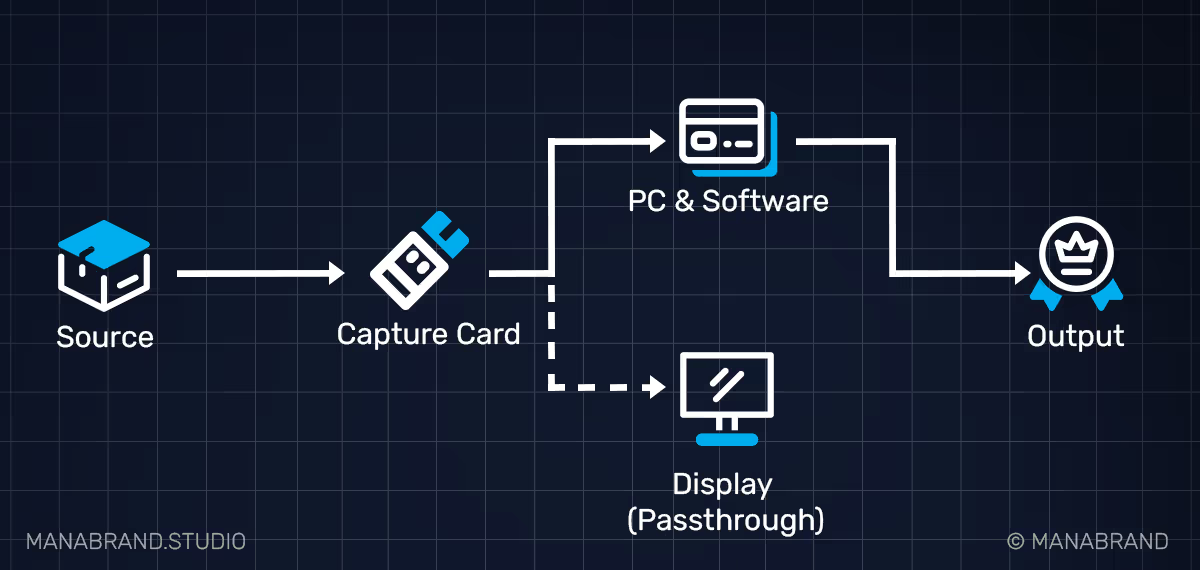
A dual-PC setup splits the work between two machines. The gaming PC runs the game. The second PC runs the streaming or recording software and encodes the output. The capture card sends the gameplay from the first PC to the second over HDMI.
Dual-PC setups suit streamers who play demanding releases at high settings, because the second PC takes over the encoding. The setup adds cost and cabling, so test the encoder fix first.
Console: Built-in Tools or Capture Card
A console cannot run external streaming or recording software such as OBS. Consoles offer the manufacturer's own tools instead, but these cover fewer functions. Whether a capture card is needed depends on what the channel wants from the stream or the footage.
What Built-in Console Tools Cover
Built-in tools cover the basics: going live, game audio, microphone and, on supported consoles, a camera. PlayStation 5 and Xbox Series X|S offer streaming to selected platforms directly from the console. Available platforms and quality settings differ by console and can change, so check the console's current options (Stand Oct 2026).
The Nintendo Switch has no built-in streaming. It outputs video to a capture card only in docked mode, and the Switch Lite has no video output at all.
A new streamer who wants to test live content can start with the built-in tools and buy nothing.
Where Built-in Tools Stop
Built-in tools do not match the functional scope of OBS or similar software. Resolution, frame rate and platform choice can be limited. Scene switching, custom overlays, a starting-soon screen and multistreaming are missing or limited. A channel that plays on PlayStation, Xbox or other consoles and wants a branded stream with scene changes and alerts needs a capture card.
The card sits between the console and the display. It sends a copy of the signal to the PC, where OBS or similar software takes over.
External cloud services can add overlays to console streams without a card. They are third-party solutions with their own costs and limits, so check their current status first (Stand Oct 2026).
Console Recording for Video Creators
Built-in capture saves clips and screenshots. Clip length is limited, and some games block capture. The Switch, for example, saves only the last 30 seconds with its capture button (Stand Oct 2026). A capture card allows long, clean footage for editing.
A standalone recorder is an alternative: it records to an SD card or drive without a PC. It offers fewer features and less control than a PC-based setup.
💡Where to start
An entry-level external USB capture card with 1080p60 capture is enough to start. The original Switch outputs at most 1080p. Switch 2, PlayStation 5 and Xbox Series X|S can output up to 4K (or even more), so pick a card whose passthrough matches the console. 1080p60 capture covers most stream and recording needs.
Camera as Face Cam: USB Webcam Mode or HDMI
A camera reaches OBS or similar software in two ways: USB webcam mode or HDMI with a capture card. USB webcam mode makes the camera appear as a webcam. It needs no card and is usually limited to 1080p. Check the camera manual for a documented webcam or UVC mode, since not every model has one.
HDMI output with a card gives more control over image and resolution. The camera needs a clean HDMI output, which removes menus, focus boxes and battery icons from the signal. For streamers, the camera feeds the face cam in the gameplay scene. For video creators, it feeds commentary and reaction footage.
USB mode is the simpler starting point if the camera supports it. A card makes sense when image quality or control limits the result. This applies on a single PC as well.
What to Check Before Buying a Capture Card
Five specs decide whether a card fits the setup. Product names are not needed to compare them.
| Spec | What it means | Why it matters |
|---|---|---|
| Capture resolution and frame rate | The quality the PC receives | Sets the ceiling for stream and recording |
| Passthrough resolution and frame rate | The signal sent to your TV or monitor | A card can pass 4K to the display and capture only 1080p. HDR, high frame rates and VRR depend on it |
| Interface (USB or PCIe) | External or internal card | USB suits most setups and laptops. PCIe fits permanent desktop and dual-PC builds |
| Color format | Compressed or uncompressed capture | Uncompressed formats keep more color detail and usually need USB 3.0 or faster |
| Audio input | Line or mic input on the card | Allows mixing console party chat into the capture |
Cards with passthrough send the signal to the display directly. The delay therefore affects mainly the preview in the software, not the gameplay on the TV.
A black capture image is a common first problem on PlayStation. The cause is usually HDCP, a copy protection that is active by default. Turning it off in the console's HDMI settings fixes it. Streaming apps on the console may need it turned on again.
💡Before you buy
Check the capture spec, not only the passthrough spec. Match both to what the console outputs and what the channel needs.
Keep Building
Next: How to Start Creating Gaming Content. It covers the four decisions that come first: content type, platform, niche timing and channel setup. Hardware follows decisions. Get started

Lukas Adams
Media Designer, Online Marketing Manager | Founder of Manabrand
Lukas Adams is a certified Media Designer and Online Marketing Manager with over six years of experience in digital media and marketing. He specializes in digital brand architecture, web design, and content marketing. He founded Manabrand to provide digital creators with repeatable infrastructure blueprints instead of generic motivational advice. His objective is to reverse-engineer industry success into actionable, long-term operational systems.
Related Articles
How to Find Your Gaming Creator Niche
Most gaming creators fail for the same reason: they never define what they actually make. Talent and consistency are not enough without a clear content direction. This guide breaks down how to find a gaming niche with real demand, low saturation, and a defensible position, built through market analysis, language-market gaps, and content-type matching.
How to Start Creating Gaming Content: Your First Steps
Most beginners buy equipment before deciding what to create or where to publish it. This guide covers the four decisions that come first: content type, platform, niche timing, and channel setup.